Stronger timestamp hotlink protection, embedded pre-roll ads, high-bitrate fast-slicing exclusions, and rewritten cloud-storage synchronization
This update mainly improves features, resolves minor issues and simplifies every operation. Features are now added or edited in dialogs, without navigating to separate pages. Adding series is particularly convenient, as demonstrated below.
Updates
- Strengthened verification of requester
ipaddresses and playback-count limits for timestamp-based hotlink protection, and added a hotlink-verification switch forTSor disguised segments. - Added embedded pre-roll ads with category assignments. Videos in selected categories can have an ad video embedded at the beginning during slicing.
- Added an option to skip fast slicing for high-bitrate videos. With fast slicing enabled, set a bitrate threshold: source videos above it are transcoded instead of sliced directly. This automatically identifies high-bitrate videos for compression, helping reduce bandwidth pressure.
- Rewrote cloud-storage synchronization to resolve minor issues. Failed-upload retry counts and upload concurrency are configurable.
- Simplified batch addition of videos to a series. Enter series information directly or retrieve it through an
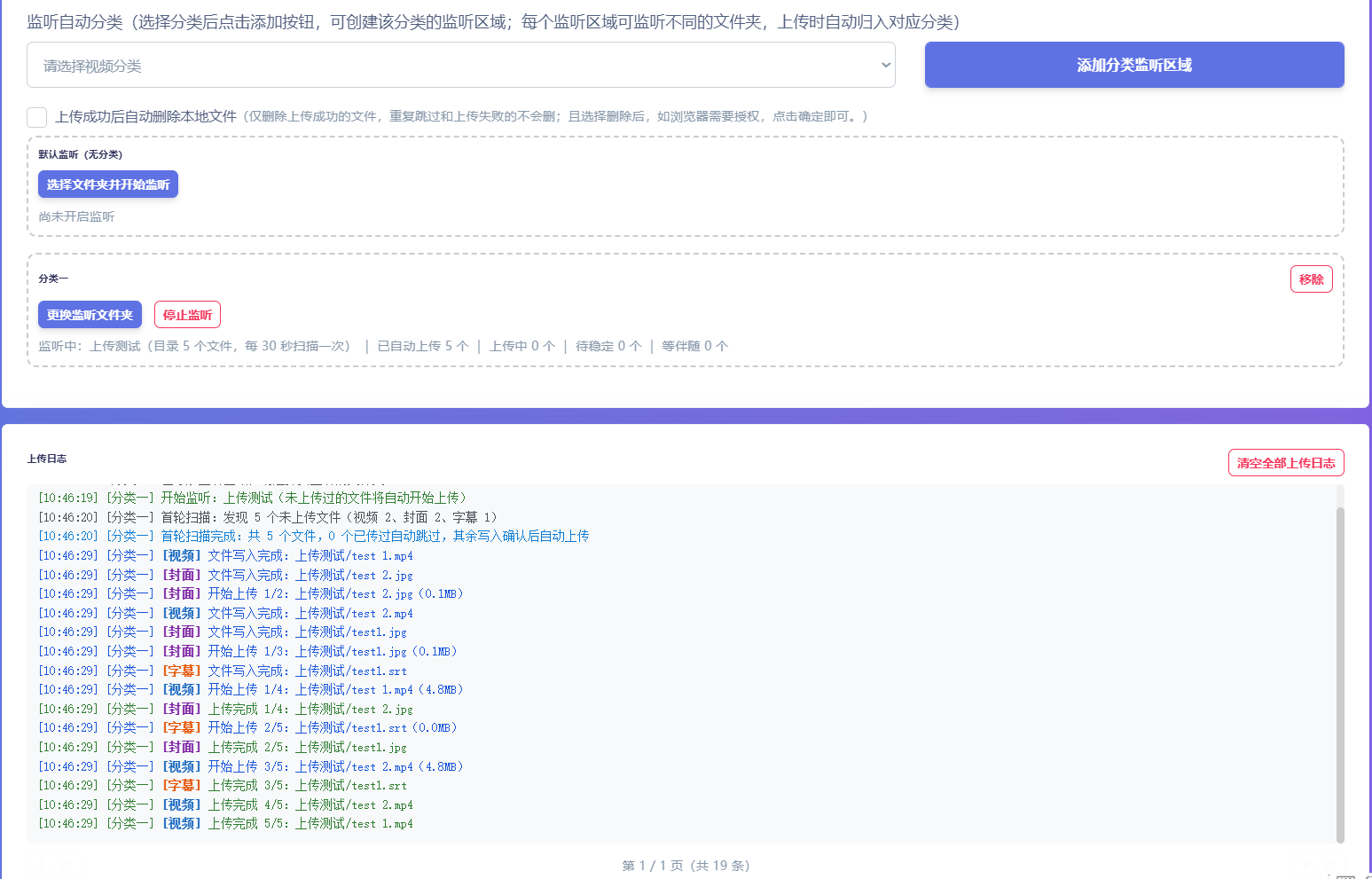
api. Submitting automatically creates the series and intelligently sorts, names and adds the videos, completing everything in one step. - Added automatic categorization for uploaded video folders. After their videos finish uploading, the category is set from the folder name.
- Added automatic filename prefixes for uploaded video folders. After their videos finish uploading, the folder name is added as a prefix to each video's name.
- Added a source-frame-rate option to transcoding settings, using the original frame rate when transcoding.
- Added options to hide the Cover 1 and Cover 2 title columns when covers are not needed. Numerous operation pages were also rewritten as feature dialogs to simplify the workflow instead of opening separate pages.
Quick series creation demonstration
First, download a series using the included BT, M3U8 or other tools, or upload it manually. Once EFV finishes transcoding, select all episodes and click the option to add them to a series in a batch.
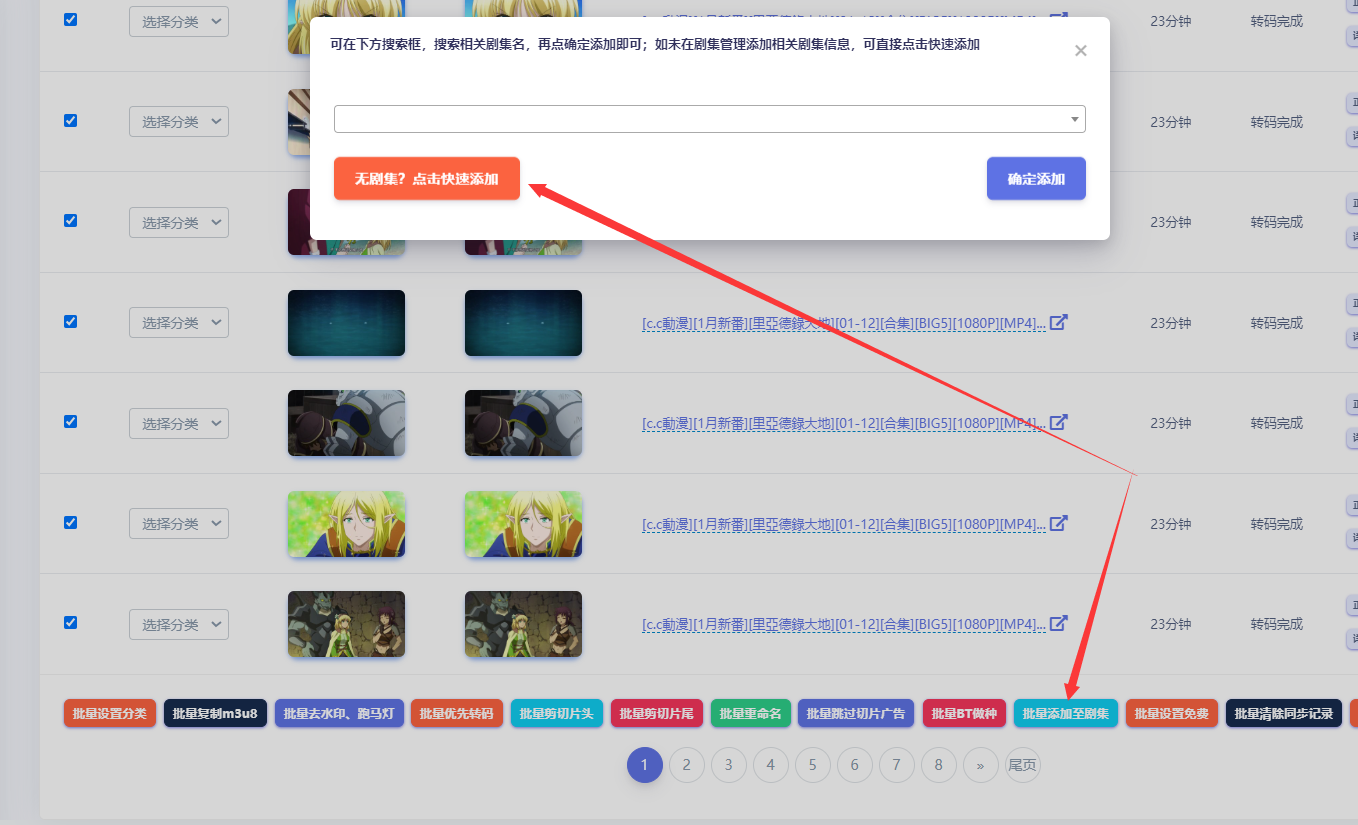
Then click Quick Add, enter series details manually or retrieve the details and poster from an api, and submit.

After submitting successfully, you can view the series information directly.

Then view its episodes.
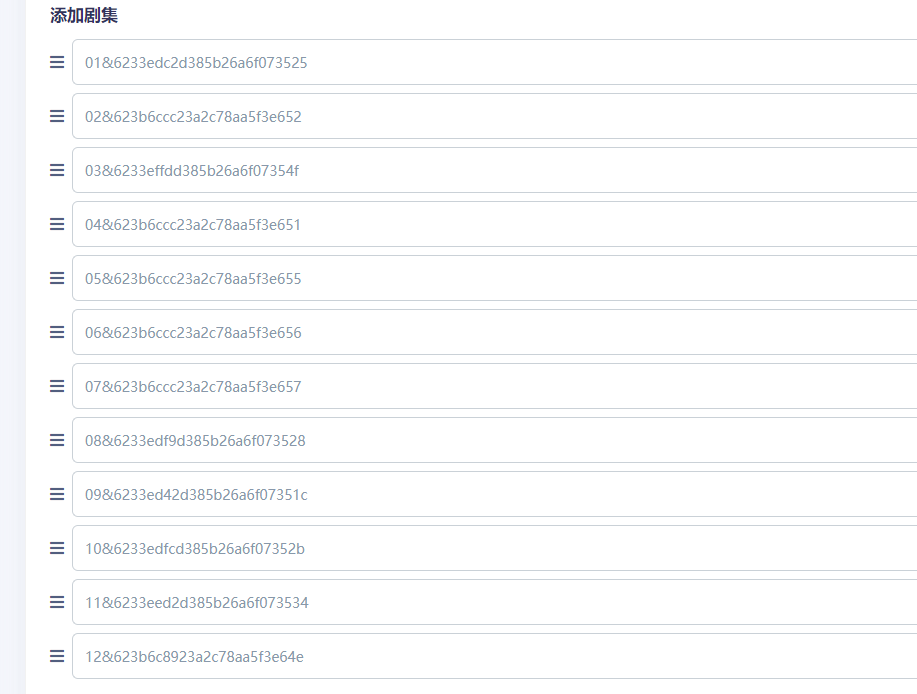
The episodes are automatically sorted and named 01, 02, 03. Their original video names do not need to be changed: even complex names can be recognized, renamed and sorted if they follow subtitle-group or standard naming conventions.
Finally, whether the series is used by the built-in CMS or collected through the API by MacCMS CMS, Aiying CMS or other systems, the episode names 01, 02, 03 are used, making integration convenient.